
Apple Pencil on the Foldable iPhone Duo: Features, Compatibility and New Uses in iOS 27.2
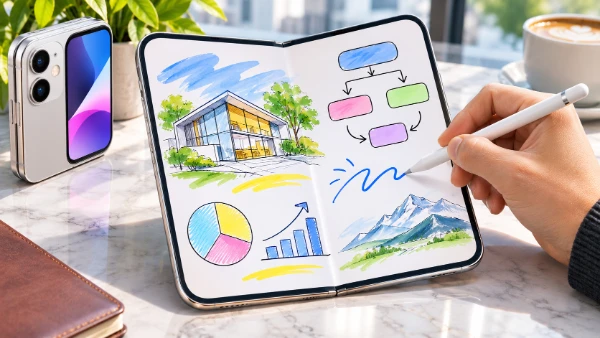
Apple Pencil support has finally arrived on an iPhone, and the foldable iPhone Duo is the first model to receive it. Released on 26 October 2026, iOS 27.2 enables handwriting, sketching, document annotation and more precise interaction with both displays. The combination of a 7.6-inch inner screen and a pocket-friendly 5.4-inch outer screen makes the stylus useful in situations where carrying an iPad would be inconvenient. However, compatibility is limited to one Apple Pencil model, and some familiar iPad features are unavailable. Understanding these differences helps iPhone Duo owners decide whether the accessory is worth buying and how to make the most of its capabilities.
How Apple Pencil Works with the Foldable iPhone Duo
Apple introduced the iPhone Duo in September 2026, with Apple Pencil support promised for later in the year. The feature arrived much sooner than many expected, becoming available through iOS 27.2 shortly after the handset reached customers on 23 October. The update brings handwriting and drawing capabilities to the iPhone for the first time, without requiring a separate application or an experimental software version. Once the appropriate Pencil is connected, users can work directly in compatible iOS applications, including Notes, Freeform and apps supporting Apple’s built-in Markup tools.
The device’s folding design is particularly important here. Its 7.6-inch inner Super Retina XDR display provides considerably more room for handwritten notes, diagrams and editing than a conventional smartphone screen. When folded, the 5.4-inch outer display remains available for shorter tasks, such as signing a document or marking a screenshot. Both displays support the stylus, so users do not have to unfold the phone every time they need to write something. The transition between them also makes it practical to begin a note on the outer screen and continue working after opening the handset.
Apple has designed the inner display with a nano-texture finish intended to reduce reflections and make the folding crease less noticeable. Combined with ProMotion technology and adaptive refresh rates of up to 120Hz, the display provides a responsive surface for handwriting. The hinge supports the centre of the screen when the device is fully open, helping maintain a flat working area. Nevertheless, the flexible display is different from the rigid glass of an iPad. Users should avoid excessive pressure, particularly near the folding area, and keep hard particles away from the screen before drawing.
Which Apple Pencil Is Compatible and How to Connect It
Only Apple Pencil (USB-C), introduced in 2023, is compatible with iPhone Duo. Apple Pencil Pro, Apple Pencil (2nd generation) and Apple Pencil (1st generation) cannot be used with the handset, even if they already work with a user’s iPad. The USB-C model offers accurate input, low latency and tilt sensitivity, making it suitable for notes, simple illustrations and document editing. However, it does not provide pressure sensitivity, so pressing harder will not automatically create a thicker stroke. Artists accustomed to the pressure-sensitive Pencil models available for certain iPads should consider this limitation before purchasing.
Pairing is straightforward. Open the sliding end of Apple Pencil (USB-C) to reveal its connector, attach a USB-C charging cable and connect the other end to iPhone Duo. When the connection prompt appears, select “Tap to Connect”. The Pencil can then be unplugged and used wirelessly. Pairing remains active until the iPhone restarts, Bluetooth is disabled or the Pencil is paired with another device. Charging also takes place through the cable, rather than through wireless charging on the phone’s side. The accessory is sold separately, and users can check its remaining charge in the Batteries widget or under Settings and Apple Pencil.
After pairing, the Apple Pencil settings offer two particularly useful controls. Enabling “Only Draw with Apple Pencil” allows the stylus to handle drawing while fingers remain available for scrolling and selecting items, reducing unwanted marks when resting a hand near the screen. Scribble provides a different benefit by converting handwriting into typed text directly inside supported text fields. Users can activate it and practise the available gestures from the same settings area. Apple Pencil hover, supported on certain iPads, should not be confused with standard stylus input on iPhone Duo, as Apple does not list the handset among devices supporting that particular feature.
What Apple Pencil Can Do in iOS 27.2
The most immediate benefit of Apple Pencil on iPhone Duo is handwritten note-taking. In Apple’s Notes app, users can create a new note, select a drawing tool and write directly on either display. The larger inner screen is especially convenient for meeting notes, revision materials, shopping plans and quick sketches. Rather than switching between a keyboard and a drawing application, users can combine ordinary text with handwritten annotations in the same note. This makes it easier to record information that does not fit naturally into typed sentences, such as arrows, rough diagrams, mathematical expressions or simple floor plans.
Freeform offers another practical use for the folding screen. Apple’s collaborative whiteboard app allows users to organise ideas using handwritten notes, drawings, shapes, images and other content on a flexible canvas. For example, a student can outline an assignment, a designer can sketch an early layout, or colleagues can prepare a visual plan during a discussion. The iPhone Duo’s inner display provides room to see more of a board without constant scrolling. Apple Pencil helps with positioning handwritten details, although the available editing tools and collaboration options still depend on the app rather than the stylus alone.
Document annotation is equally valuable. Through Markup, iPhone Duo owners can highlight passages, circle important details, add handwritten comments and sign documents. A customer could review a PDF quotation and mark a requested change, while an employee could add corrections to a screenshot before sending it to a colleague. Markup is available in several Apple apps, although the exact controls vary depending on the file and application. The main advantage is convenience: small corrections can be completed immediately on the phone instead of transferring the document to a computer or waiting until an iPad is available.
Handwriting Recognition, Drawing and Everyday Shortcuts
Scribble is one of the most useful features for people who prefer writing by hand. Instead of opening a special note-taking screen, users can write directly in a text field and have their handwriting converted into ordinary text. Apple also provides gestures for correcting entries: scratching out a word deletes it, drawing a vertical line can separate or join characters, and circling or underlining text allows it to be selected. These controls are particularly handy when filling in forms, entering short search queries or correcting a sentence. Recognition quality can vary with handwriting style and language, so important information should still be checked before submission.
Drawing tools provide more control than using a fingertip. Apple Pencil (USB-C) supports tilt sensitivity, allowing compatible brushes and pencils to change their shading or stroke appearance according to the angle of the accessory. In Notes or Freeform, this can help with sketching objects, illustrating instructions or adding emphasis to a diagram. However, its limitations matter for detailed artwork. The absence of pressure sensitivity means that the drawing experience is not identical to using Apple Pencil Pro with a compatible iPad. Users who create demanding digital illustrations may still prefer a dedicated tablet with more advanced stylus controls.
The combination of handwriting and folding also creates useful everyday shortcuts. A traveller can annotate a saved itinerary, a homeowner can sketch measurements over a photograph, and a student can add handwritten corrections to a study document. Someone reviewing a presentation can use Markup to indicate where an image should move or which paragraph needs rewriting. These activities do not require advanced drawing skills. They simply benefit from being able to point, write and illustrate more precisely than with a finger. iOS 27.2 also adds a Shortcuts automation trigger for opening or closing iPhone Duo, although this is a separate feature rather than an automatic Apple Pencil command.
New Ways to Use Apple Pencil on the iPhone Duo
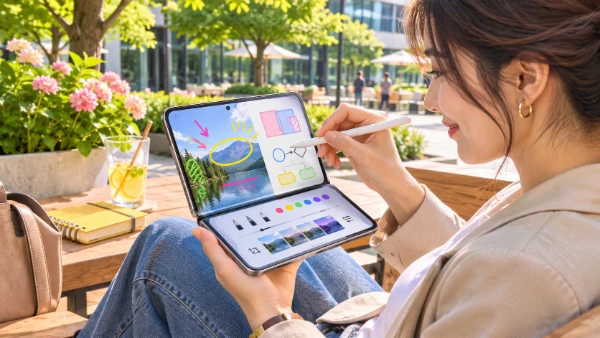
The strongest argument for Apple Pencil on iPhone Duo is the flexibility of having two screen sizes in one device. On the outer display, the stylus suits brief interactions such as adding a signature, correcting a note or highlighting part of an image. Opening the phone provides a much larger area for writing several lines, reviewing annotated documents or working on a detailed sketch. The interface adapts to changes in the handset’s orientation and folding position, helping users continue their work without constantly changing devices. This is particularly useful when travelling, working away from a desk or attending meetings with limited space.
For education, the foldable format offers an alternative to carrying a separate notebook for every subject. Students can combine typed explanations with handwritten diagrams, revise PDF materials and organise visual ideas in Freeform. Teachers and tutors may find the Pencil useful for correcting worksheets or illustrating a concept during a conversation. The larger screen makes handwritten feedback easier to read, while the closed phone remains convenient for checking saved notes between lessons. However, the experience is still influenced by application support, the available screen area and the user’s preferred writing style. It does not automatically replace every function of a full-sized iPad.
Professional uses are similarly practical. Architects, technicians and designers can sketch preliminary ideas or mark changes on photographs without opening a laptop. Office workers can sign files, comment on screenshots and prepare visual notes during calls. The foldable handset can also be positioned in its seated configuration for hands-free viewing, although users should ensure it is stable before writing. iOS 27.2 introduces Edge Light for supported video calls, but this is separate from Apple Pencil functionality. The more significant advantage for stylus users remains the ability to move between communication, reference material and handwritten input on one compact device.
Practical Limitations and Whether Apple Pencil Is Worth Buying
Before purchasing Apple Pencil, owners should consider how frequently they would actually use handwritten input. The USB-C model is particularly well suited to document corrections, notes, signatures and occasional sketches. It is less compelling for someone who mainly browses websites, sends messages and watches videos, as these activities work perfectly well with touch controls. The accessory must also be carried and charged separately. Although Apple Pencil (USB-C) attaches magnetically to compatible iPads for storage, Apple does not advertise an equivalent magnetic storage or charging arrangement for iPhone Duo.
Screen care deserves attention. The iPhone Duo has a specially engineered folding display, protective layers and a strengthened hinge, but owners should still treat the inner surface carefully. Apple Pencil should be used with its normal tip, and damaged tips should be replaced rather than pressed against the screen. It is sensible to keep the display clean, avoid drawing over trapped grit and refrain from forcing the hinge into an uncomfortable position. Software compatibility is another consideration: an app must provide suitable handwriting, drawing or annotation functions to make full use of the Pencil. Basic stylus input does not guarantee that every iPad drawing feature will appear in an iPhone application.
For existing iPhone Duo owners, Apple Pencil support makes iOS 27.2 a meaningful update rather than a minor collection of fixes. The ability to write on both displays, convert handwriting through Scribble and annotate files directly on a foldable phone adds flexibility to everyday tasks. Anyone buying the accessory should choose Apple Pencil (USB-C), update the device to iOS 27.2 or later, and begin with Notes, Freeform or Markup to understand the available controls. The result is not a complete replacement for a professional drawing tablet, but a useful expansion of what a smartphone can accomplish when handwriting and a larger folding screen work together.